
Archiving a 1:1 Series is different from cancelling a 1:1 instance. When you cancel a particular 1:1 instance you are cancelling a specific meeting not the entire series. If you wish to stop your 1:1s with your team member then you need to use the Archive 1:1 feature.
By Archiving a 1:1 you will no longer have any future meetings being scheduled with your team member (as a part of the series). To continue with the 1:1 you will need to either create a new series or unarchive the previous 1:1 series.
Archiving a 1:1 series
Step 1: Navigate to manage team 1:1s
Mesh Home → Me → 1:1s → Choose intent 'I want to manage 1:1s'
Mesh Home → Me → 1:1s → Choose intent 'I want to manage 1:1s'
Step 2: The 1:1s Manage page will open, showing a list of your 1:1s with your manager and peers for a specified timeline.
Step 3: From the list of 1:1s click the three-dot menu infront of the series you would like to archive. You will see a menu open up.
Step 4: Select ‘Archive 1:1’.
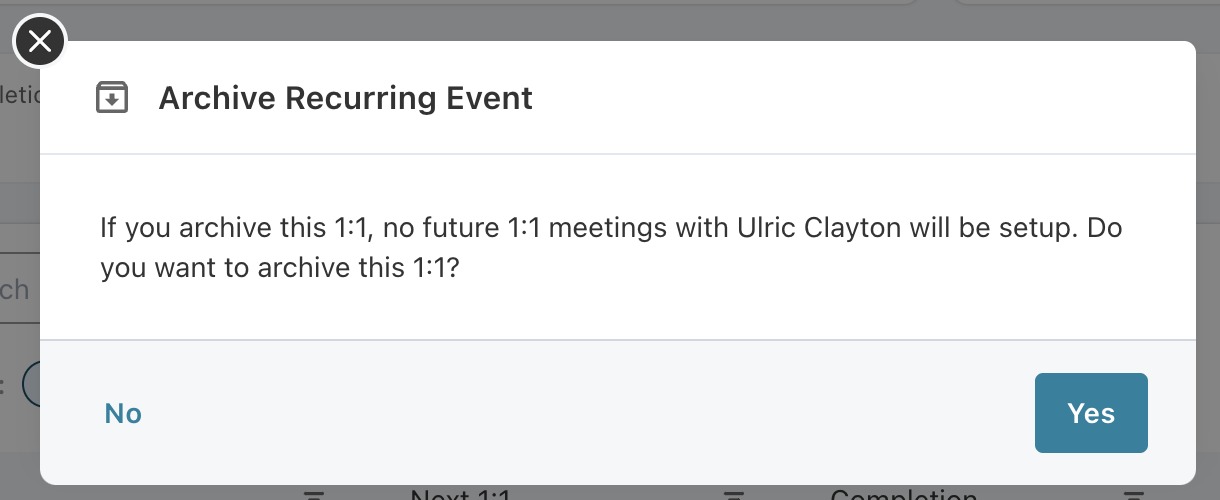
Step 6: You will be prompted with a pop up asking you to confirm archiving the 1:1. Click on ‘Yes’
Once you have archived the 1:1 series you will now be able to see it in the ‘Archive’ list.
Unarchiving a 1:1 Series
Step 1: Navigate to manage team 1:1s
Mesh Home → Me → 1:1s → Choose intent 'I want to manage 1:1s'
Mesh Home → Me → 1:1s → Choose intent 'I want to manage 1:1s'
Step 2: The 1:1s Manage page will open, showing a list of your 1:1s with your manager and peers for a specified timeline.
Step 3: From the list of 1:1s click the three-dot menu in front of the series you would like to unarchive. You will see a menu open up.
Step 4: Select ‘Unarchive 1:1’.
Step 5: You will be prompted with a pop-up asking you to confirm unarchiving the 1:1. Click on ‘Yes’
Once you have unarchived the 1:1 series, you can see it on the 'I want to manage 1:1s' page.
Comments
0 comments
Please sign in to leave a comment.