
Note: Rescheduling your 1:1s from Google/Outlook calendars may require you to enable the Calendar Integration.
To know more about Calendar Integration on Mesh, refer to the article:
You can reschedule your 1:1 occurrence (instance) or the entire 1:1 series in two ways:
- From Mesh
- From Google /Outlook calendars
The rescheduled meeting details are automatically synchronised between the calendars, keeping all your 1:1s organised in one place.
How to reschedule an upcoming instance
Step 1: Navigate to manage team 1:1s
Mesh Home → Team → Direct Team → 1:1s → Choose intent 'I want to manage 1:1s'
Mesh Home → Team → Direct Team → 1:1s → Choose intent 'I want to manage 1:1s'
Step 2: The 1:1s Manage page will open, showing a list of your 1:1s with your team, for a specified timeline.
Step 3: Select the 1:1 series that you wish to edit. This will take you to the upcoming 1:1 instance.
Step 4: Click on the Date and Time specified at the top of the 1:1 instance.
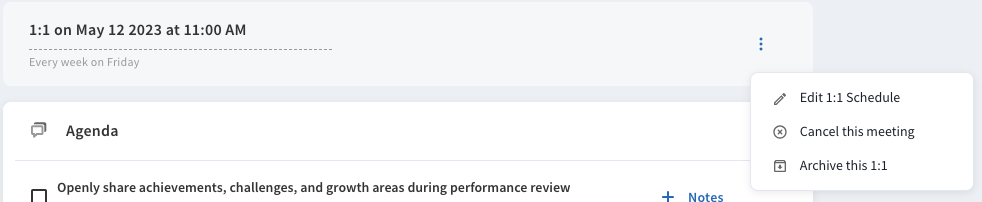
Alternatively, you can also click on the kebab menu (፧) beside the Time and Date and click on Edit 1:1 Schedule.
Step 5: Change the ‘Meeting Date', 'Meeting Time' and 'Duration'. Don't change the ‘Meeting Frequency’ as that may change the frequency of the entire series of 1:1s that may take place in the future.
Step 6: Click on Save.
Step 7: In the pop-up that appears, select Edit this meeting option if you wish to reschedule this particular instance.
Select Edit this and all following meetings if you wish to reschedule this instance along with all the instances following this instance.
Step 8: Click on Save again, and your 1:1 will be rescheduled.
Changing the frequency of 1:1s
Step 1: Navigate to manage team 1:1s
Mesh Home → Team → Direct Team → 1:1s → Choose intent 'I want to manage 1:1s'
Mesh Home → Team → Direct Team → 1:1s → Choose intent 'I want to manage 1:1s'
Step 2: The 1:1s Manage page will open, showing a list of your 1:1s with your team, for a specified timeline.
Step 3: Select the 1:1 series that you wish to edit. This will take you to the upcoming 1:1 instance.
Step 4: Click on the Date and Time specified at the top of the 1:1 instance.
Alternatively, you can also click on the kebab menu (፧) beside the Time and Date and click on Edit 1:1 Schedule.
Step 5: Change the ‘Meeting Date', 'Meeting Time' and 'Duration' in case you wish to change the date and time of the 1:1 occurrence.
Step 6: Now, to change frequency click on ‘Meeting Frequency’ and choose from
- Weekly
- Biweekly
- Monthly
- Custom
Step 7: Click on Save
The 1:1 frequency will be changed.
Thus, use the flexibility of rescheduling your 1:1 meetings to accommodate for changes in schedules, ensuring that fewer meetings are cancelled and timely discussions take place in the company.
How to cancel an upcoming instance
Step 1: Navigate to manage team 1:1s
Mesh Home → Team → Direct Team → 1:1s → Choose intent 'I want to manage 1:1s'
Mesh Home → Team → Direct Team → 1:1s → Choose intent 'I want to manage 1:1s'
Step 2: The 1:1s Manage page will open, showing a list of your 1:1s with your team, for a specified timeline.
Step 3: Select the 1:1 series that you wish to edit. This will take you to the upcoming 1:1 instance.
Step 4: Click on the kebab menu (፧) beside the Time and Date and click on Cancel this meeting.
Step 5: A pop up will appear asking you to confirm cancelling the meeting and states that it will be marked as ‘skipped’
Step 6: Click on Save.
The meeting will be cancelled.
Comments
0 comments
Please sign in to leave a comment.